Changelog

Follow new updates and improvements to Wonders AI.

Zotero Integration

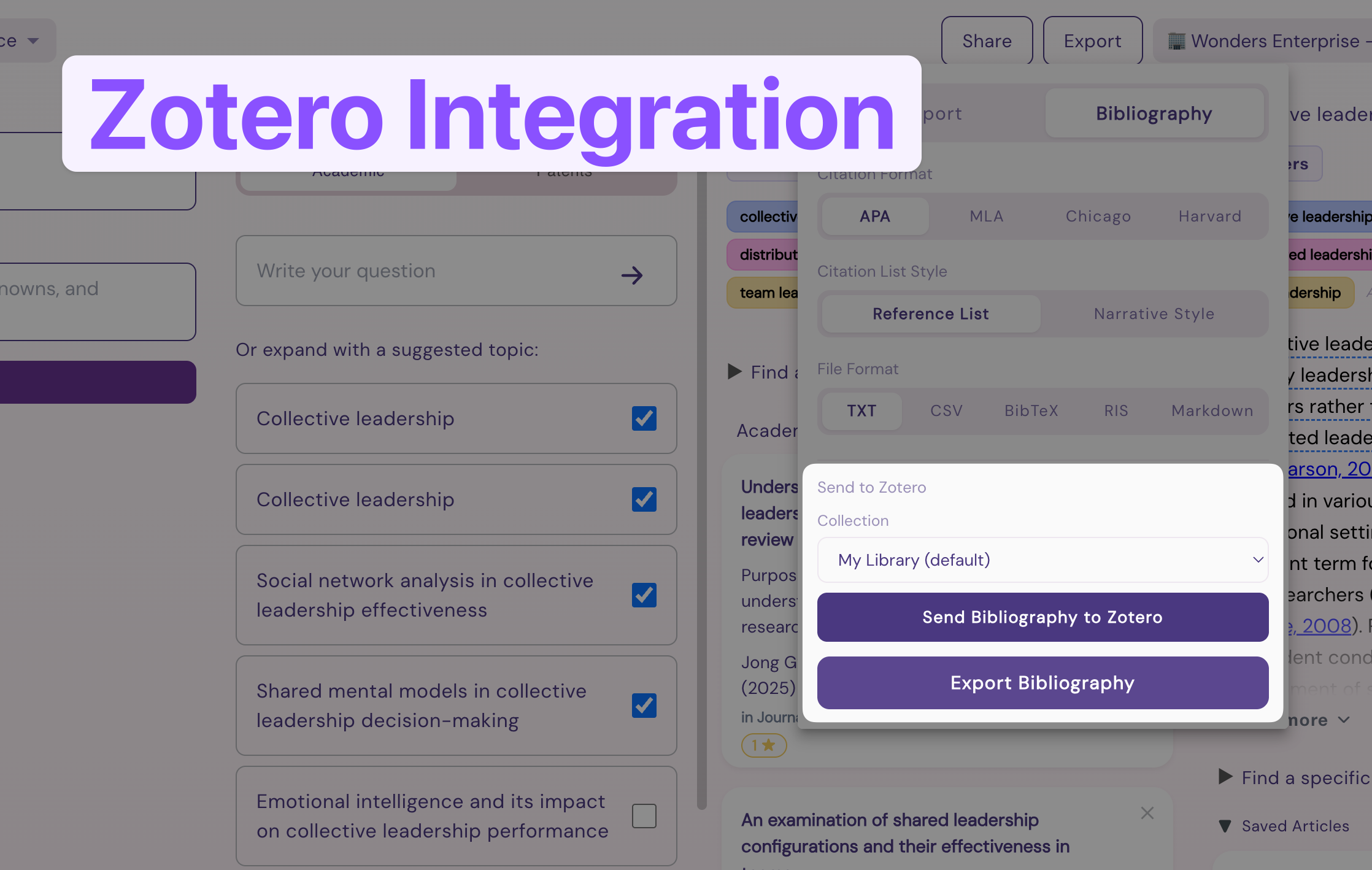
Zotero integration is now available in Wonders! Connect your Zotero account in Settings or in the Export > Bibliography dialog and push your Wonders findings directly into Zotero.

The integration supports:

  • Regular push

  • Collection selection

  • Collection creation


Currently, Wonders will push all the most relevant papers used for summaries and any papers you’ve saved to topics.

Let us know what you think about the integration.

- Wonders Team

Access Paid Papers (Preview)

Paywalled papers? No problem! Wonders now has two new ways to add papers behind a paywall into your personal workspace.

1. Upload a PDF (Private library)

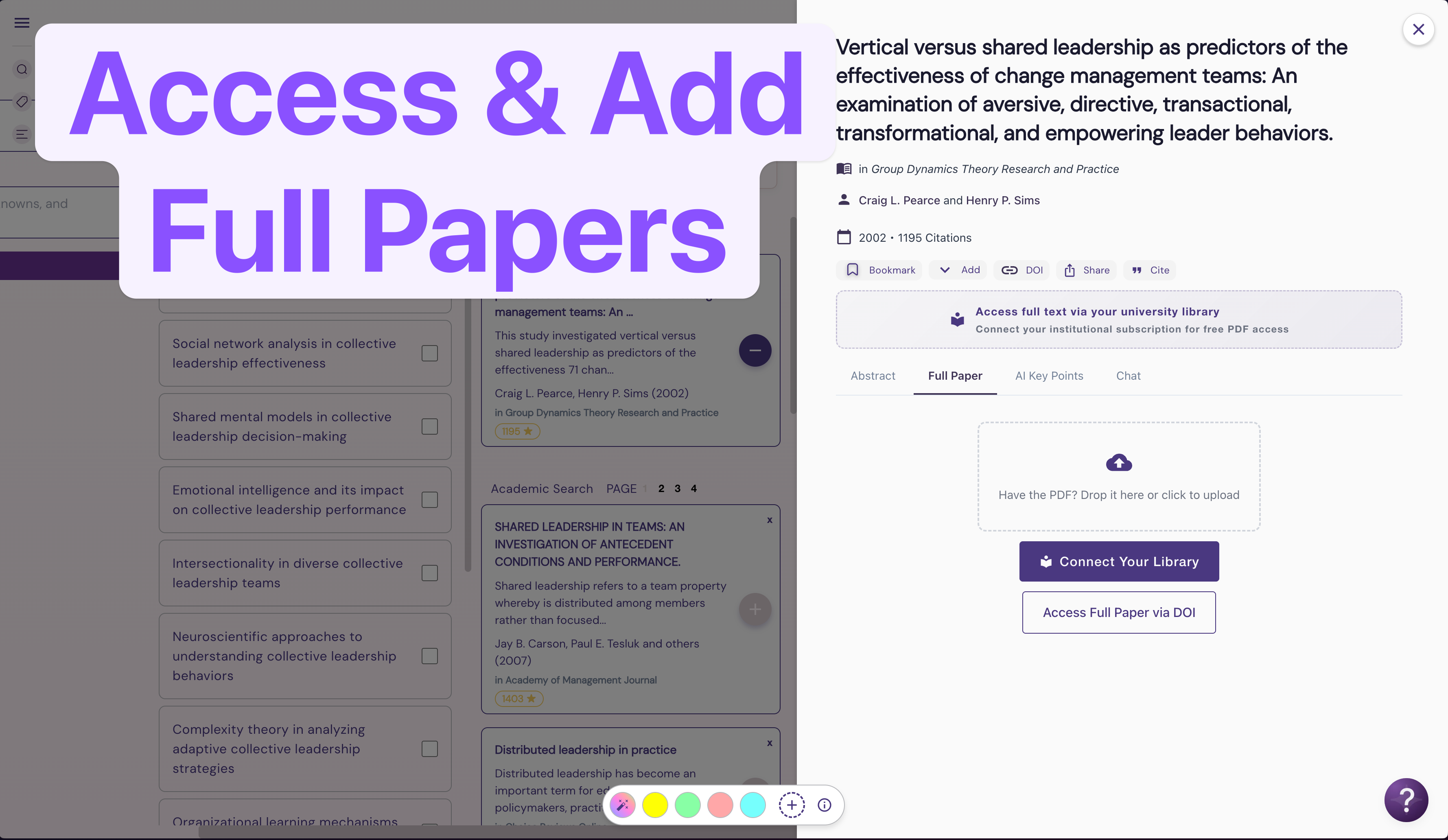
You can upload a PDF into your personal library (not shared with the rest of the Wonders community, except for users invited directly to your board). Simply click upload on the Full Paper tab as below:

Once the paper is uploaded, the full-text will appear in Wonders and will become available to the AI system for analysis.

2. Connect your Library

Alternatively, you can add your Library access ID into your Wonders account and access papers automatically.

Click “Connect Your Library” or “Access full text via…”

Add your Library ID (if you’re unsure what is this, check with your library services, they will be able to assist!)

And that’s it, you will now have the ability to access any papers your school is subscribed to.

Note on availability

NB: We’re aware that there are different systems for accessing paid library resources and we’re working on supporting more providers. If your system isn’t supported yet—please use the PDF upload feature for now.

– Wonders Team
Find & Add Specific Papers (by DOI & Title)

Wonders has always been great for exploration, but finding specific papers meant juggling keywords and Author filters. We heard your feedback and added an easier way to lookup specific papers by DOI and Title. Here’s how to do it…

Lookup Specific Papers (Precision Lookup)

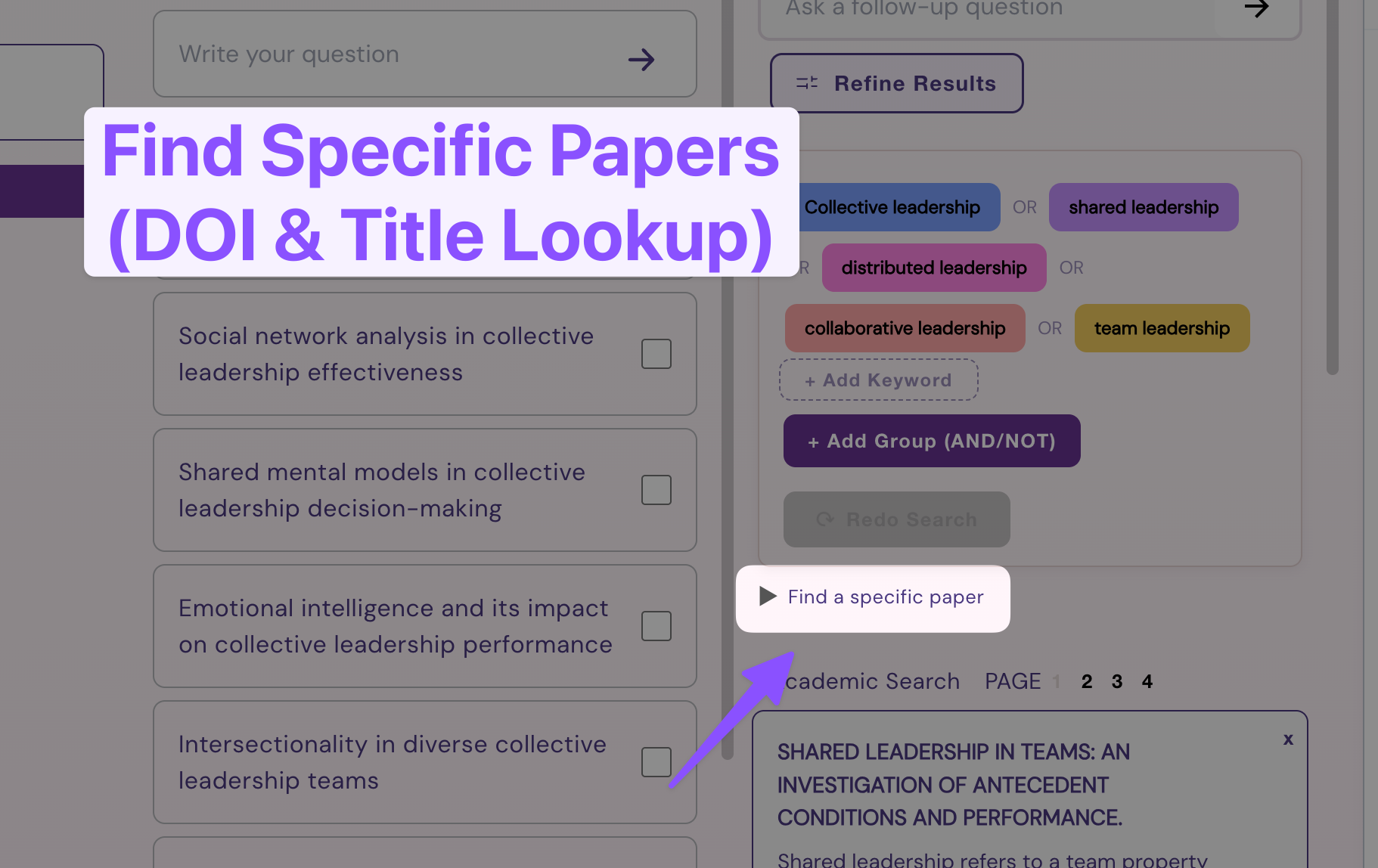
  1. Unfurl the “Find a specific paper” search box

  2. Enter your desired paper DOI or Title (partial title also works):

    1. DOI Lookup

    2. Title Lookup (can also be just part of the title - Wonders will pull up several matching papers)

  3. Find your paper

  4. Click (+) Save to Topic to keep your paper in your project

  5. Keep your fresh new paper handy!

And that’s it. After saving the paper into your topic, it will become part of your research board’s library until you choose to remove it. We’re also adding new ways to access full-text PDFs directly in Wonders.

Let us know what you think of this new feature & drop any other ideas on how might we support your research workflows on our Feedback Portal.

– Wonders Team

Earlier updates